License sale and delivery server
Avoid the hassle when creating licenses and delivering them to your customers
We will walk through a fictional but realistic example with screenshots. This scenario describes how Simon, a sales administrator at a software company, uses QuidLM to create and deliver a software license after receiving a customer order.
You can also try this process yourself: follow this link. Contact our staff to get the user name and password to examine the site.
License sale and delivery
Simon works in the sales department of a software company called iPower. The software company uses QuidLM to sell and deliver licenses to their customers, and Simon administrates the delivery server.
He receives an order to create and deliver a license for his company's software product to a customer. He visits the Products page, which lists the licenses that can be created. Simon's company makes PowerReports software, which is available in two flavors - a Software Development Kit and a Microsoft Excel plugin. Both appear in the Products table to allow Simon to create licenses for them.
Moreover, PowerReports XL, the Excel plugin flavor, is present in two versions. This is because some customers of PowerReports XL are wary of numerical regressions, and refuse to upgrade to the latest version when it is time to renew their license. The older version, PowerReports XL 1.0, still remains in the Products table to support those customers.
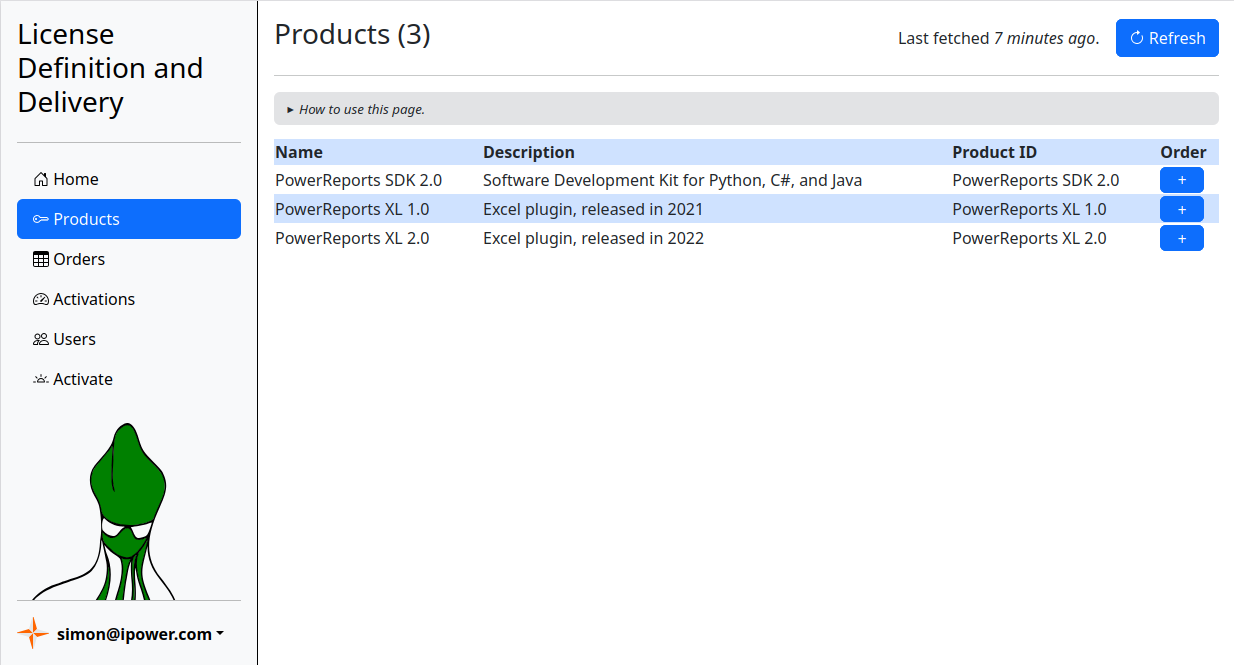
Simon selects the appropriate + button in the Order column to create the license he needs.
The dialog box prompts him to enter the recipient of the license and other license parameters.
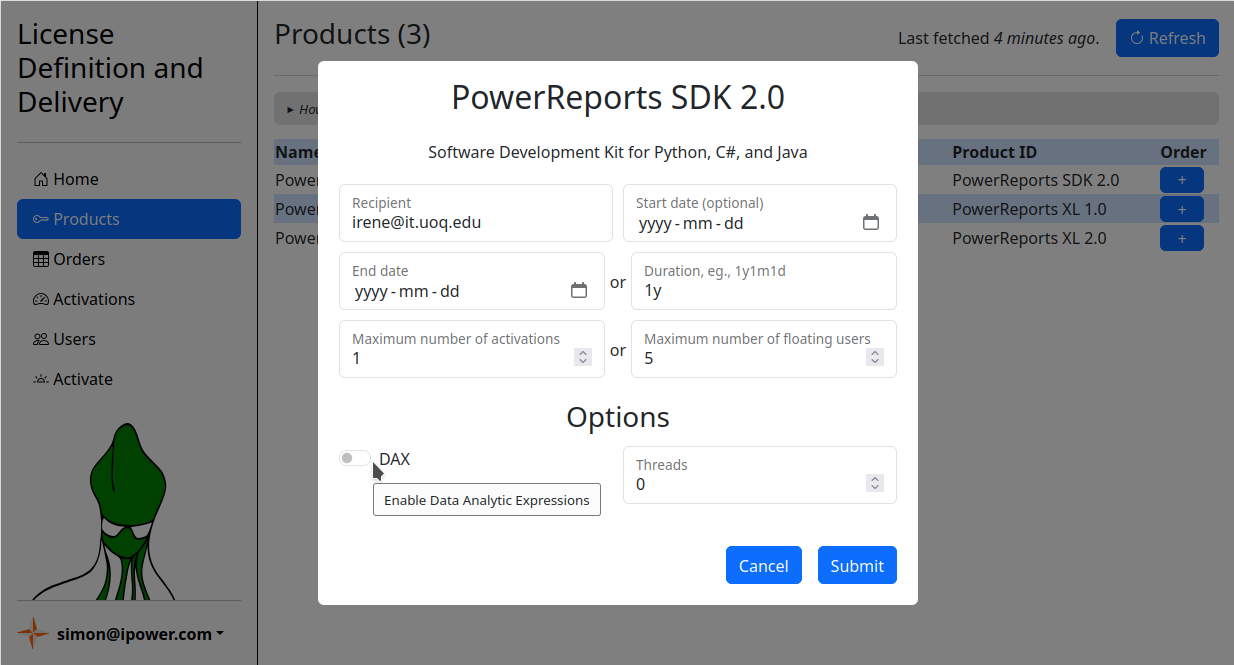
Some parameters are common to all possible products. The next section describes those.
Mandatory license parameters
- Customer
- Specifies the customer to whom the PSN will be delivered.
- End date or Duration
- Licenses are time limited. Their validity period can be specified by either the End date or the Duration - one of these inputs has to be filled in during order creation. If you would like to deliver a perpetual license, that can be approximated by creating a license that is valid for 1,000 years.
- Maximum number of activations or floating users
- Licenses can be node-locked (tied to one computer) or floating (tied to a license server). If you are creating a node-locked license, specify the Maximum number of activations. If you specify a non-zero Maximum number of floating users, the license will be floating.
Optional license parameters
Licenses also allow optional parameters. The Start date is one such parameter that applies to every license. The license can be delivered to the customer before the start date but will be inactive until that date.
Note that the Start date value interacts with the Duration parameter. If the start date is specified, the expiration date of the license is that date plus the duration. If the start date is unspecified, the expiration date of the license is the activation date plus the duration.
Other optional parameters are customizable and depend on the license. They are listed under the Options section. The parameters can be strings, dates, numbers, or booleans. The input fields ergonomically cater to the expected type of input. For example, date parameters are represented by date selectors, and booleans are shown as toggles.
Orders
The successful submission of the above dialog creates a new order. Each order is identified by a Product Serial Number - PSN - which can be delivered to the customer by email. The customer can redeem the PSN for a license file on her device - a computer or a license server. The orders appear on the Orders page.
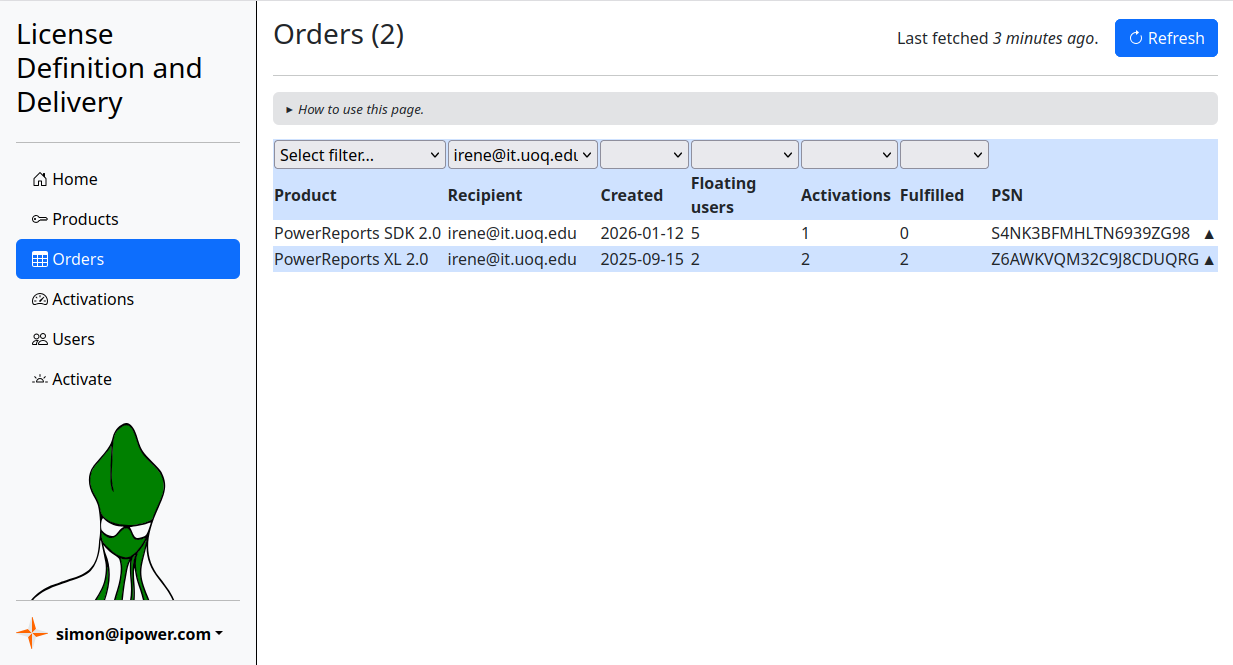
The page contains a table of license creation orders. The table rows can be sorted by clicking the column titles or filtered by selecting items from the dropdowns above the column titles. Clicking the triangle icons on the right side expands rows to show the literal license strings delivered to customers' computers.
If a customer loses the license file, the license string for that customer’s computer can be copied from the order and manually re‑delivered. Customers can also use their license activation software to retrieve the license files they lost, using the same PSN they used before.
Activations
To enable licensed software, customers redeem their PSNs for the license files.
This process is called license activation and performed by running the license_activator application,
which is a redistributable part of QuidLM.
license_activator Z6AWKVQM32C9J8CDUQRG
The result of the above command, when successful, is a license file Z6AWKVQM32C9J8CDUQRG.lic,
which enables the software product for which the Z6AWKVQM32C9J8CDUQRG
PSN was issued, on the computer on which the command was run.
For the convenience of end-users, the software product installer can execute
the license_activator command during the software installation.
The customers who use the license server to organize their licenses can also redeem their PSNs on the server's Activation page. That process is described in the Floating license administration section.
Successful activation increments the number in the Fulfilled column of the Orders page.
Fulfilled orders are listed on the Activations page. The page contains the information about the computers to which the licenses are currently tied and which PSNs were used.
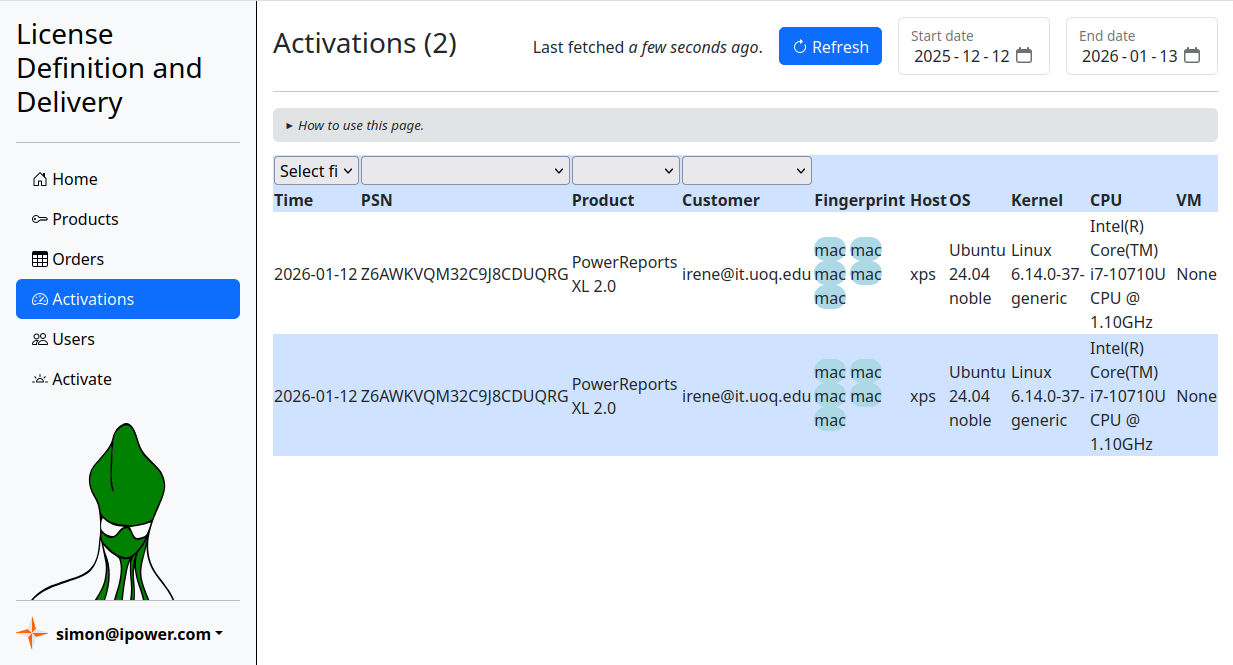
In addition to the usual filtering and sorting features, there are controls for selecting a date range. Initially, the list of activations is limited to the ones that happened in the last month. The date range can be changed by selectors in the top-right corner.
Offline activation
The server also has a page that is accessible to all customers.
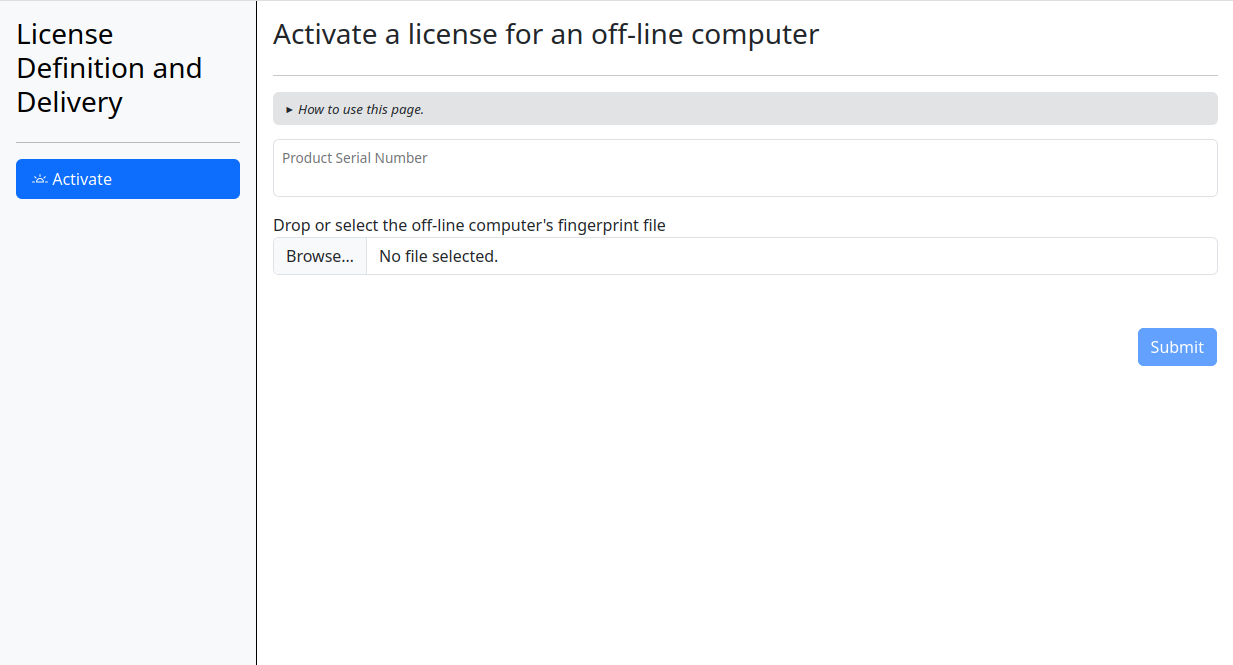
Customers who have a PSN can procure licenses for their computers using the license activator application. The application uses an Internet connection to redeem the PSN for a license file on their computer. If they need a license on a computer that is not connected to the Internet, they may use the offline activation page to procure the license file. This process, called offline activation, takes three steps:
- Create the fingerprint file of the offline computer. Run the license activator application on that computer to create the fingerprint file:
(The file name is arbitrary, but the extension must belicense_activator -o my-offline-computer.fingerprint.fingerprint.) The file is then copied to a computer that is connected to the Internet, to be used on the activation page. - Type your PSN in the Product Serial Number field of this page and drop the fingerprint file onto the Browse... field, then press the Submit button. This will start the download of the license file.
- Copy the license file to the offline computer from step 1.
New: Expiration report
Starting from version 2.25, the expiration report is available via the web user interface.

It is a convenient view of the customers whose licenses are about expire. The date selectors in the top-right corner adjust the range of expiration dates that you want to see. By default, the range is from today to one month from now. The table can be filtered and sorted according to the content of the chosen columns.