Floating license administration
Managing access to floating licenses
We will walk through a fictional but realistic example with screenshots. You can also try this process yourself: follow this link. Contact our staff to get the username and password to examine the site.
Floating license server
Consider the case of Queensborough University. Several labs at the university use PowerReports - software made by iPower. iPower is a software vendor and uses QuidLM to sell and deliver licenses to their customers, and the License sale and delivery server section of this documentation describes their part of the process. Queensborough University uses QuidLM license server to make PowerReports floating licenses available to their staff. They chose floating licenses because of the flexibility they provide:
- Each floating license can be used on many devices - just not at the same time.
- The university has staff in different time zones, and staff in one time zone can be using licenses while the staff in another time zone is off work.
The license server technology is provided by QuidLM, and the server can be run on Queensborough University's hardware, or can be rented from QuidLM as software-as-a-service (SaaS). Moreover, iPower can also host a license server, if they choose to provide that service for their customers.
PSN walk-through
Irene works at the IT department of Queensborough University and has an administrator account for the QuidLM license server.
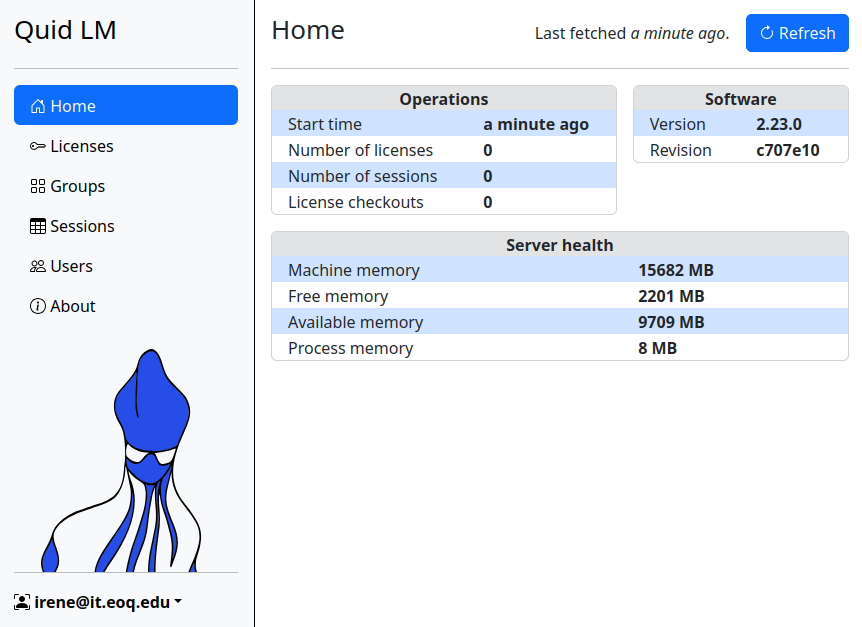
After logging in, Irene sees the dashboard that displays the health status and basic server information.
Queensborough University ordered 20 licenses of the latest version of PowerReports XL. The order was processed by iPower, and Irene received a PSN. A PSN is a short randomized string, such as VWAXRJL2S9HBPPDR695H, that allows Irene to bring the purchased licenses to the server.
License activation
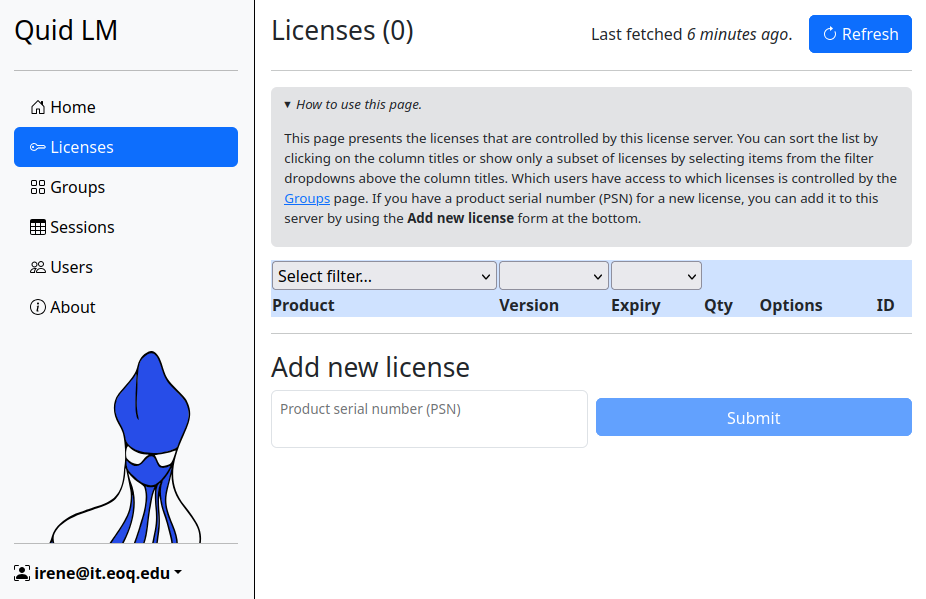
The Licenses page is where this process occurs. Irene begins with the page that has an empty table of licenses and an expandable note that describes how to use the page.
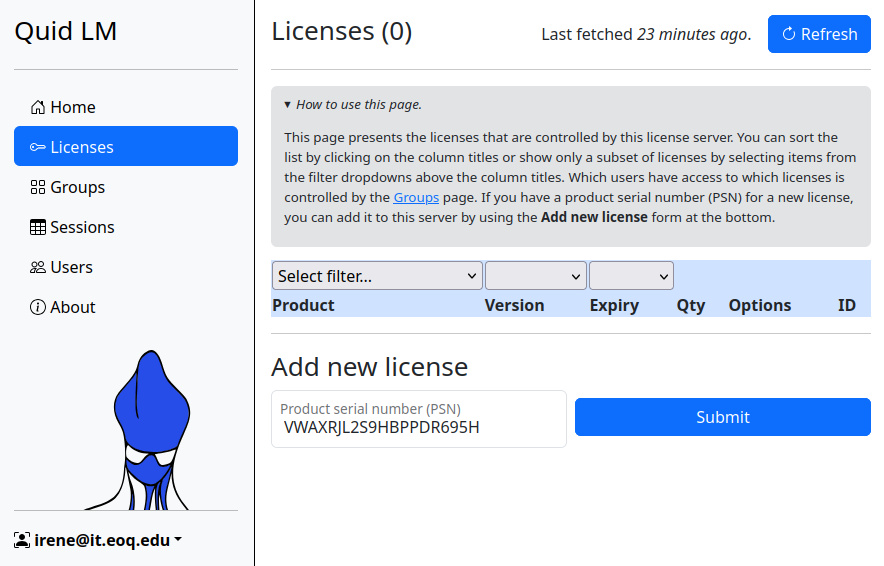
She enters the PSN she received from iPower in the Add new license section.
After pressing the Submit button she can immediately see that 20 licenses have become available. She can also verify the version of the product, the license expiry date, and the fact that the Data Analysis Expression (DAX) feature is included in the license.
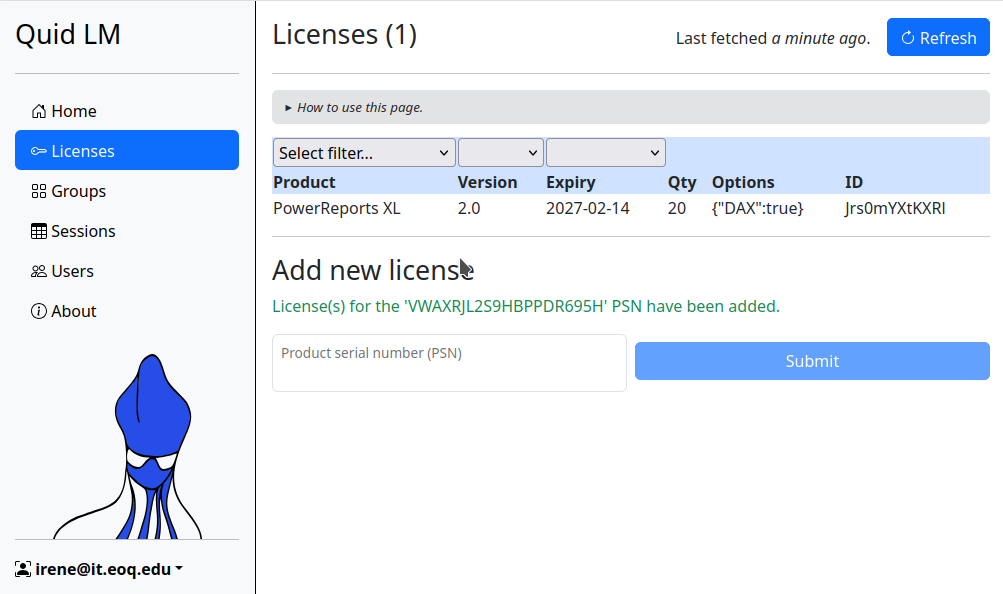
Irene can allow everyone in the company to run the software that requires these licenses, on the first-come, first-served basis, up to 20 simultaneous users. The 21st user will not be allowed to use the software, as there are only 20 licenses. However, as soon as one of the 20 users closes the software, the previously denied user can start her copy of the application.
User groups
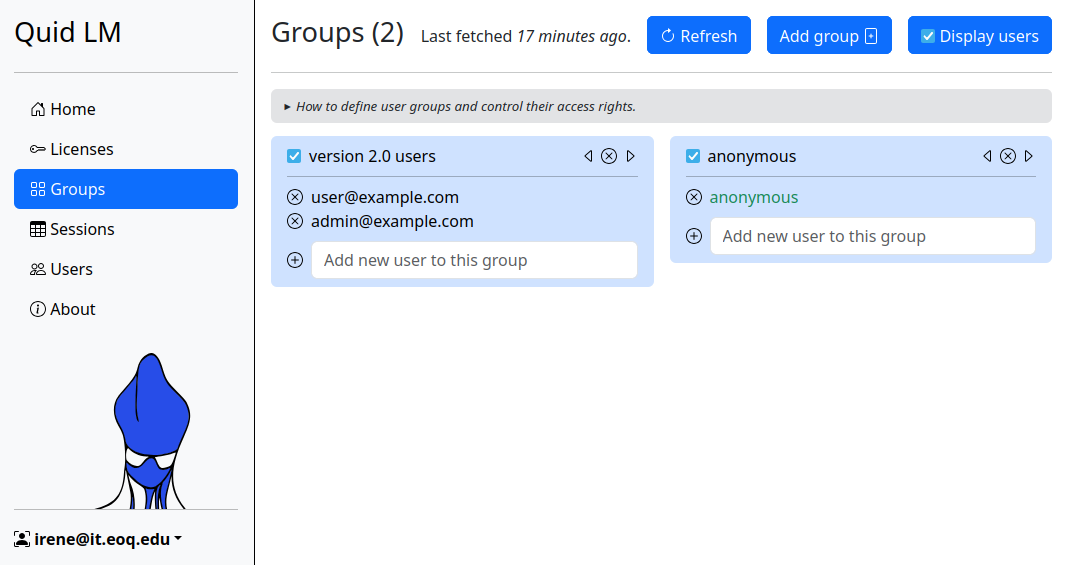
Irene can also assign some number of licenses to certain users or a group of users - those licenses will only be available to members of that group. The Groups page allows the creation of user groups and defines which groups are allowed to use specific licenses. One possible arrangement is shown in the next two screenshots. The administrator has defined two groups, represented by two cards. The first group contains two named users who are allowed to use version 2.0 of the product - their emails are listed, and those users need to identify themselves when using the product. The other group contains all other users, who can remain anonymous.
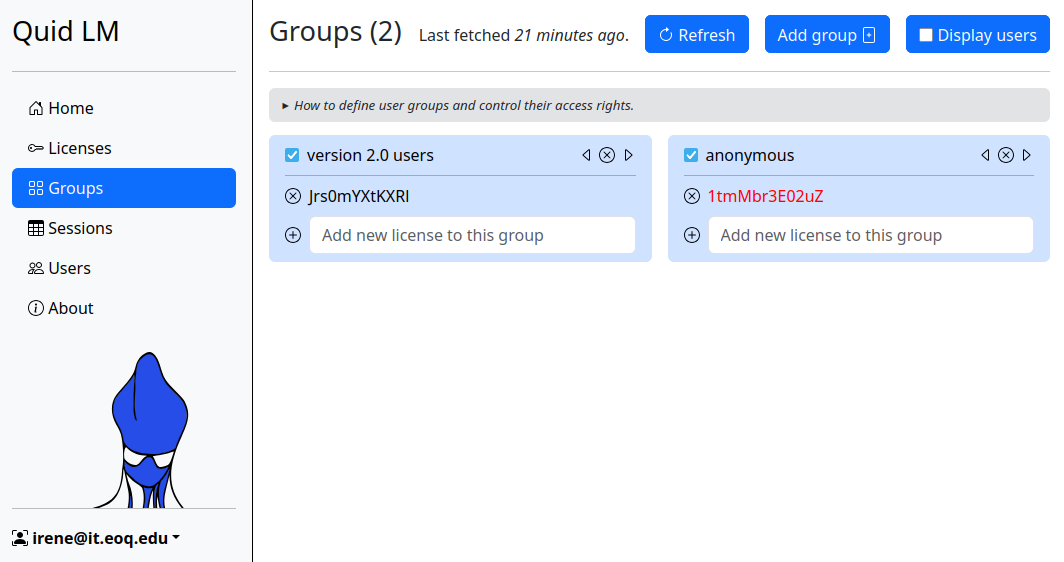
If you deselect the Display users button in the top right corner, you will see which licenses are assigned to each user group - the licenses are identified by their unique IDs.
License sessions
The next page, Sessions, allows the administrator to see who currently is using the software, and on which computer.
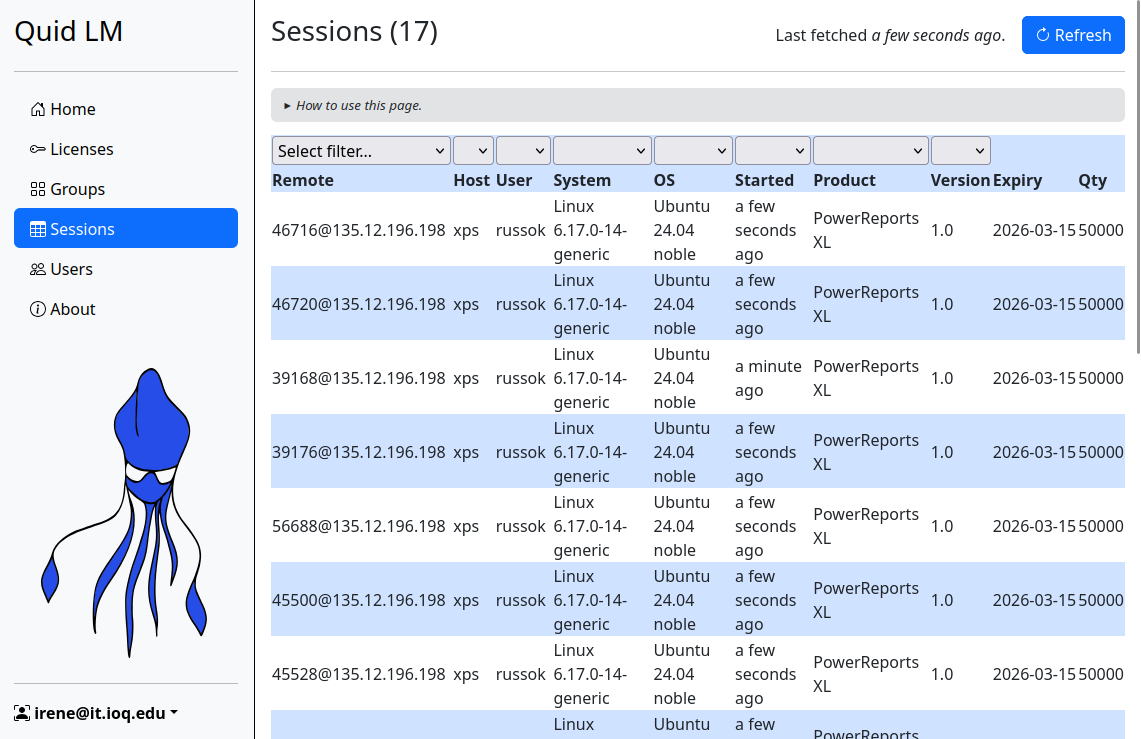
Just like on other pages, it is possible to sort and filter the table based on the content of selected columns.
New: Statistics
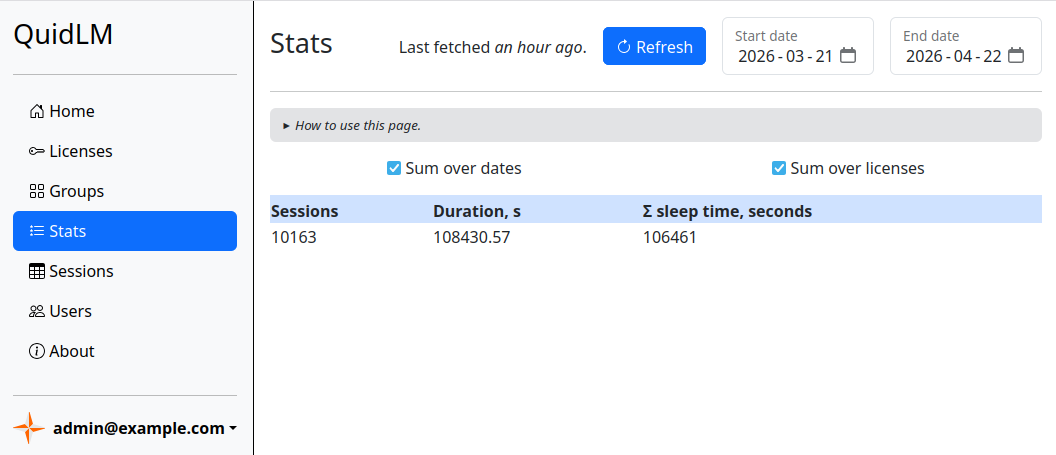
Starting from version 2.25, the usage statistics is available via the web interface.
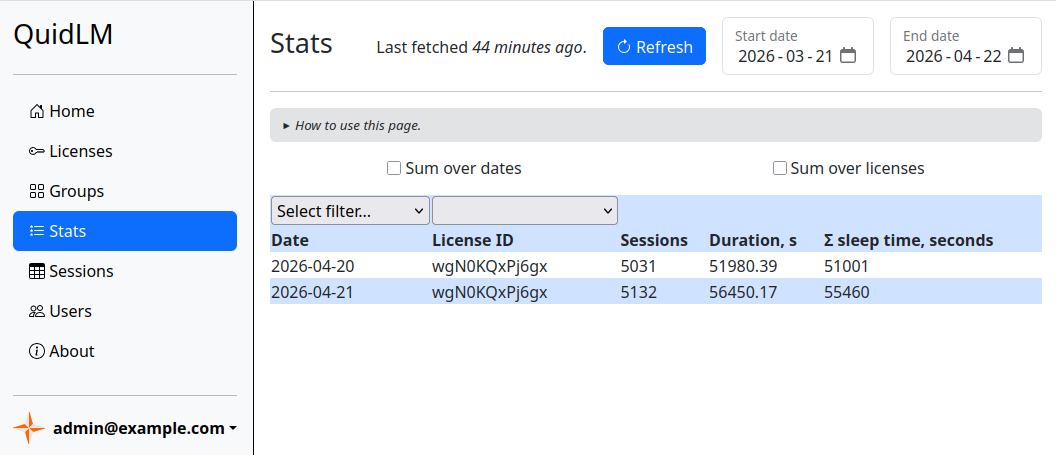
The table contains the number of license checkouts (the Sessions column) and the time that the license were in use (Durations, s), by date and license type. There can be additional columns in the table - they depend on what additional data your application reports to the license server. The demo applications that are shipped with QuidLM report their sleep time, and that is the additional column that you see in the above screenshot. There can be as many additional columns as you want - your application just needs to report the data using the convenient QuidLM-provided API.
The date selectors in the top-right corner of the page allow you to view different time periods. The default range is the last month. The table can be filtered and sorted according to the content of the chosen columns.
If you are not interested in the usage breakdown by date or by license type, select the Sum over dates and/or Sum over licenses checkboxes, to aggregate the data with respect to the chosen column(s). For example, when both checkboxes are selected, you get a table with just one row, aggregated over all licenses and the entire date range: